Introducing the Visual Seating Manager
Setting up your restaurant's table layout just got a whole lot easier. We've rebuilt the Seating page from the ground up with a visual floor plan editor that lets you see your dining room take shape in real time.
What's New
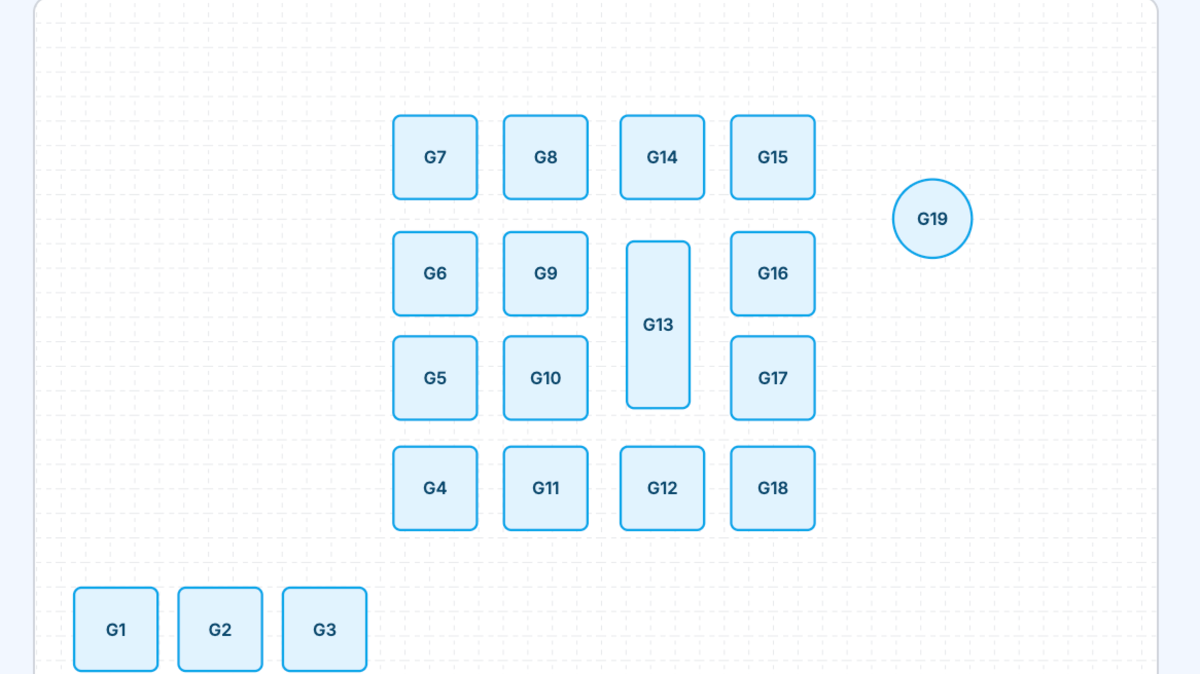
Visual Floor Plan — Instead of filling out forms and guessing where tables go, you now see an interactive canvas for each room. Tables appear as shapes you can drag into place, just like arranging furniture on a blueprint.
Drag and Drop — Click and drag any table to reposition it on the floor plan. The grid snaps tables into clean alignment automatically. Your changes save the moment you release.
Custom Table Shapes — Choose from rectangular and circular table presets in multiple sizes. For rectangular tables, you can also set rotation (0, 45, 90, or 135 degrees) to match your actual layout.
Room Management — Organize tables into rooms like "Main", "Patio", or "Bar". Each room gets its own floor plan with a summary of table count and total seating capacity. Creating a new room is as simple as typing a name when adding a table.
Zoom Controls — Adjust the floor plan scale from 0.5x to 1x to get the view that works best for your screen.
Why It Matters
A well-configured seating layout helps your team manage tables efficiently during service. With the visual editor, you can set up or update your floor plan in minutes instead of juggling forms and spreadsheets.
Head over to Seating in your Back Office to try it out. For detailed instructions, check out our Seating documentation.
We'd love to hear what you think. If you have questions or feedback, reach out to our support team anytime.